
Lorex LNB9252B Bullet Camera Setup Instructions: A Comprehensive Guide
This guide details the setup of your Lorex LNB9252B 4K camera‚ covering everything from unboxing to advanced configurations‚ ensuring optimal security and performance.
The Lorex LNB9252B is a cutting-edge 4K (8MP) smart IP bullet security camera designed for robust indoor and outdoor surveillance. Featuring advanced Nocturnal 3.0 technology‚ it delivers exceptional clarity even in low-light conditions‚ boasting up to 150ft of night vision. This camera offers real-time 30FPS recording and includes Listen-in Audio‚ allowing you to hear what’s happening in the monitored area.
Its IP67 weatherproof rating and durable metal housing ensure reliable performance in various climates. Smart motion detection‚ capable of distinguishing between people and vehicles‚ minimizes false alerts. Seamless integration with Lorex DVR/NVR systems and the Lorex app provides convenient remote viewing and control.
Unboxing and Component Check
Upon receiving your Lorex LNB9252B‚ carefully inspect the package for any signs of damage during shipping. Inside the box‚ you should find the LNB9252B 4K IP bullet camera itself‚ along with a quick start guide to assist with initial setup. A mounting template is included for precise drill hole placement during installation.
Verify the presence of necessary hardware‚ such as screws and wall anchors‚ essential for securely attaching the camera. While a PoE (Power over Ethernet) injector may be included in some bundles‚ confirm its presence if you intend to use PoE. Retain the packaging for potential future returns or warranty claims.
Understanding Key Features
The Lorex LNB9252B boasts several advanced features for enhanced security. Its 4K (8MP) resolution delivers incredibly detailed images‚ allowing for clear identification of subjects. Nocturnal 3.0 Technology provides exceptional night vision‚ extending visibility in low-light conditions with both color and black & white modes.
The integrated Listen-in Audio feature enables remote monitoring of sounds near the camera‚ adding another layer of awareness. Smart motion detection‚ including person and vehicle detection‚ minimizes false alerts. Its IP67 weatherproof rating ensures reliable operation in various climates.
3.1 4K (8MP) Resolution
The LNB9252B’s 4K (8MP) resolution is a cornerstone of its superior image quality. This high resolution—3840 x 2160 pixels—captures four times the detail of standard 1080p cameras. This allows for clearer zooming and identification of crucial details‚ even from a distance.
Such clarity is invaluable for security purposes‚ enabling positive identification of individuals or objects. The camera achieves 30 frames per second (FPS) at this resolution‚ ensuring smooth and fluid video recording. This combination of resolution and frame rate delivers exceptionally detailed and reliable surveillance footage.
3.2 Nocturnal 3.0 Technology
Lorex’s Nocturnal 3.0 technology significantly enhances low-light performance. This advanced feature combines high-performance image sensors with intelligent image processing to deliver vibrant color images even in extremely dark conditions. The LNB9252B boasts a night vision range of up to 98 feet in total darkness and an extended 150 feet in ambient lighting.
Unlike traditional infrared (IR) cameras‚ Nocturnal 3.0 extends the period of color night vision‚ providing more identifiable footage. This technology ensures clear and detailed surveillance‚ day or night‚ maximizing the camera’s effectiveness.
3.3 Listen-in Audio
The Lorex LNB9252B features built-in Listen-in Audio‚ allowing you to hear what’s happening in and around your property. This feature provides an added layer of security and awareness‚ enabling you to remotely monitor conversations or sounds. The camera utilizes a sensitive microphone to capture audio within range‚ transmitting it directly to your connected device via the Lorex App.
Listen-in Audio can be activated and adjusted through the camera’s settings‚ offering control over sensitivity and recording preferences. It’s a valuable tool for verifying events and enhancing overall surveillance capabilities.
Pre-Installation Considerations
Before installing your Lorex LNB9252B‚ careful planning is crucial for optimal performance. Assess your network infrastructure‚ ensuring compatibility with Power over Ethernet (PoE) for seamless connectivity and power delivery. Consider cabling routes‚ prioritizing concealment within walls or conduit to protect against damage and maintain a tidy setup.
Evaluate potential mounting locations‚ factoring in viewing angles and accessibility. Proper cable protection extends the lifespan of your system. Thorough pre-installation planning guarantees a smooth and effective security camera deployment.
4.1 Network Requirements (PoE)
The Lorex LNB9252B utilizes Power over Ethernet (PoE)‚ simplifying installation by transmitting both power and data through a single Ethernet cable. A PoE-enabled network switch or injector is essential. Verify your switch supports 802.3af PoE standards to provide sufficient power to the camera.
Ensure your network has available bandwidth to handle the 4K video stream. A stable and robust network connection is vital for reliable recording and remote viewing. Confirm compatibility before proceeding to avoid connectivity issues and ensure optimal camera functionality.
4.2 Cabling Options & Protection
For the Lorex LNB9252B‚ utilize Cat5e or Cat6 Ethernet cables to connect the camera to your network. These cables provide sufficient bandwidth and reliability for 4K video transmission. Consider shielded cables for outdoor installations to minimize interference.
Protect cabling from weather and physical damage by running it through conduit or along protected surfaces. Securely fasten cables to prevent strain and ensure a tidy installation. Proper cable management extends the lifespan of your setup and maintains optimal performance‚ safeguarding your investment.
Physical Installation of the Camera
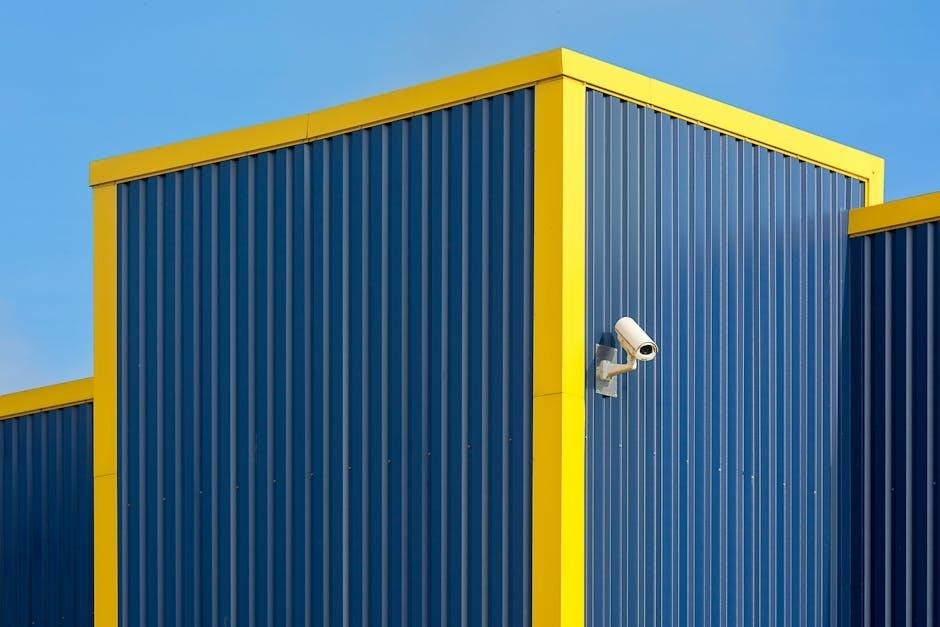
Begin the Lorex LNB9252B installation by carefully selecting a mounting location‚ ensuring a clear field of view and accessibility for cabling. Use the provided mounting template for accurate drill hole placement. Securely attach the camera bracket to the chosen surface using appropriate screws and anchors.
Once mounted‚ adjust the camera angle for optimal coverage‚ considering potential obstructions. Tighten all screws to prevent movement due to wind or vibrations. Conceal cables for protection and a clean aesthetic‚ utilizing conduit where necessary.
5.1 Mounting Location Selection
Choosing the right location is crucial for effective surveillance with your Lorex LNB9252B; Prioritize areas with clear views of entry points like doors and windows. Consider height – mounting higher provides a wider field of view but may complicate future maintenance. Ensure the location allows for easy cable routing‚ either through walls or protected conduit.
Avoid direct sunlight exposure‚ which can affect image quality. Also‚ be mindful of potential obstructions like trees or bushes that could grow and block the camera’s view over time.
5.2 Camera Angle Adjustment
Fine-tuning the camera angle is essential for capturing the desired surveillance area. After mounting‚ loosen the adjustment screws on the bracket to tilt and pan the LNB9252B. Aim for a balanced view‚ avoiding excessive sky or ground. Utilize the live view on the Lorex app to precisely frame the scene.
Consider the field of view and potential blind spots. Adjust the angle to maximize coverage of key areas while minimizing distortion. Once satisfied‚ securely tighten the adjustment screws to prevent unwanted movement from wind or vibrations.
Connecting the Camera to Your Network
Establishing a network connection is crucial for remote viewing and recording. The Lorex LNB9252B utilizes Power over Ethernet (PoE)‚ simplifying the process. Connect the camera to a PoE-enabled network switch or NVR using an Ethernet cable. Ensure the switch supports the 802.3af PoE standard.
The camera will automatically attempt to obtain an IP address via DHCP. If a static IP is required‚ configure it through your NVR or router’s interface. Verify connectivity by accessing the camera’s web interface using the assigned IP address.
6.1 Power over Ethernet (PoE) Setup
PoE eliminates the need for a separate power adapter‚ streamlining installation. Connect the Lorex LNB9252B directly to a PoE-enabled switch or NVR using a compatible Ethernet cable. Verify your switch supports the 802.3af standard‚ providing sufficient power to the camera.
Upon connection‚ the camera will power on automatically. Ensure a stable PoE connection for uninterrupted operation. If the camera doesn’t power on‚ check the cable and switch compatibility. A dedicated PoE injector can also be used if your switch lacks PoE capabilities.
6.2 IP Address Configuration
The Lorex LNB9252B typically obtains an IP address automatically via DHCP from your router. However‚ for consistent access‚ assigning a static IP is recommended. Access your router’s configuration page and locate the DHCP client list to find the camera’s assigned IP.
Alternatively‚ use the Lorex Home app or a web browser to access the camera’s settings and manually configure a static IP address within your network’s range. Ensure the gateway and DNS settings are correct for proper network communication. This ensures reliable remote access and recording.
Lorex Security System Integration
Integrating the LNB9252B with a Lorex DVR/NVR significantly expands your security capabilities. Ensure your DVR/NVR supports 4K (8MP) cameras for optimal resolution. Connect the camera to a PoE port on the NVR using an Ethernet cable. The NVR will automatically detect the camera‚ prompting you to add it to the system.
If automatic detection fails‚ manually add the camera by entering its MAC address or IP address within the NVR’s interface. This allows centralized recording‚ playback‚ and management of all your Lorex security devices‚ enhancing overall system efficiency.
7.1 Adding the Camera to Your Lorex DVR/NVR
To add the LNB9252B to your Lorex DVR/NVR‚ first‚ verify the DVR/NVR firmware is up-to-date for compatibility. Connect the camera to a PoE port on the NVR using an Ethernet cable. Access the NVR’s settings via the connected monitor and navigate to the camera management section.
Select “Add Camera” and choose the appropriate protocol (typically ONVIF). If auto-discovery fails‚ manually input the camera’s IP address and credentials. Save the settings‚ and the camera feed should appear on the NVR’s display‚ completing the integration process.
Using the Lorex App for Mobile Viewing
The Lorex App enables remote access to your LNB9252B camera from your smartphone or tablet. Download and install the Lorex app from the App Store (iOS) or Google Play Store (Android). Create a Lorex account or log in if you already have one.
Within the app‚ select “Add Device” and follow the on-screen instructions. You can scan the QR code on the camera or manually enter the camera’s serial number. Once added‚ you’ll have live viewing‚ recording access‚ and control over camera settings directly from your mobile device.
8.1 Downloading and Installing the Lorex App
Begin by accessing your smartphone’s app store – the Apple App Store for iOS devices or the Google Play Store for Android. Search for “Lorex Home” or “Lorex Security” within the store’s search bar. Locate the official Lorex app‚ ensuring it’s published by Lorex Corporation‚ and tap the “Install” or “Get” button.
Allow the app to download and install on your device. Once completed‚ tap “Open” to launch the application. You may be prompted to grant permissions‚ such as access to your camera and local network – these are necessary for full functionality.
8.2 Adding the Camera to the App
Launch the Lorex Home app and create an account‚ or log in if you already have one. Tap the “+” icon‚ typically located in the top-right corner‚ to add a new device. Select “Add Camera” from the options presented‚ then choose “Smart Device” or a similar category depending on the app version.
The app will likely prompt you to scan a QR code located on the camera itself‚ or manually enter the camera’s serial number. Follow the on-screen instructions to complete the pairing process‚ ensuring your phone is connected to the same network as the camera.
Configuring Camera Settings
Access the camera’s settings through the Lorex Home app or your Lorex DVR/NVR interface. Within the settings‚ you can customize various features to optimize performance. Adjusting motion detection sensitivity is crucial to minimize false alarms‚ defining specific zones for monitoring. Configure recording schedules to specify when the camera should record continuously or upon motion detection.
Explore image settings like brightness‚ contrast‚ and saturation to fine-tune video quality. Enable or disable features like wide dynamic range (WDR) for balanced exposure in challenging lighting conditions. Regularly review and adjust these settings for optimal results.
9;1 Motion Detection Settings
Access motion detection settings via the Lorex Home app or your connected DVR/NVR. Sensitivity levels are key; higher sensitivity detects even minor movement‚ potentially causing more alerts. Lower sensitivity reduces false alarms but might miss crucial events. Define specific motion detection zones‚ focusing on areas of interest and excluding irrelevant spaces like trees or roads.
Configure schedules to activate motion detection only during specific times. Utilize person/vehicle detection (if available) to filter alerts‚ receiving notifications only for relevant events. Regularly test and adjust these settings for optimal performance.
9.2 Recording Schedules
Establish recording schedules through the Lorex Home app or your DVR/NVR interface. Continuous recording captures footage 24/7‚ consuming significant storage space. Scheduled recording allows you to define specific times for recording‚ optimizing storage usage. Create multiple schedules to accommodate varying needs – for example‚ recording during nighttime hours or when you’re away.
Configure recording types: motion-triggered‚ scheduled‚ or continuous. Prioritize event recording for critical areas‚ and consider lower resolutions for less important zones to conserve storage. Regularly review and adjust schedules based on your security requirements.
Utilizing ONVIF and RTSP Compatibility
The Lorex LNB9252B supports ONVIF and RTSP‚ enhancing compatibility with third-party surveillance systems. ONVIF (Open Network Video Interface Forum) enables seamless integration with various NVRs and video management software. RTSP (Real Time Streaming Protocol) allows streaming live video feeds to compatible applications and platforms.
Utilize these protocols for flexible surveillance solutions beyond the Lorex ecosystem. Configure RTSP URLs within your preferred software for live viewing and recording. This expands your options and provides greater control over your security setup‚ ensuring broader system integration.
Troubleshooting Common Issues
Encountering problems with your Lorex LNB9252B? A common issue is the camera failing to connect to the network; verify PoE connection and network cable integrity. Poor video quality can stem from low bandwidth or incorrect settings – adjust resolution and bitrate. Ensure the camera’s firmware is up-to-date for optimal performance.
If motion detection isn’t functioning‚ review the sensitivity settings and recording schedules. For listen-in audio issues‚ confirm microphone access and volume levels. Regularly check cabling for damage and power supply stability.
11.1 Camera Not Connecting to Network
If your Lorex LNB9252B camera won’t connect‚ first‚ confirm the Power over Ethernet (PoE) switch is functioning correctly and providing power. Verify the network cable is securely connected to both the camera and the switch‚ checking for physical damage. Ensure the camera is on the same network subnet as your DVR/NVR or router.
Try rebooting both the camera and the network switch. Double-check the IP address configuration; a static IP may require manual entry. If issues persist‚ consult your router’s documentation for compatibility.
11.2 Poor Video Quality
Experiencing blurry or pixelated video from your LNB9252B? Begin by verifying sufficient bandwidth on your network‚ especially during peak hours. Ensure the camera lens is clean and free of obstructions. Check recording resolution settings within your Lorex system; lowering the resolution can improve streaming quality.
Confirm adequate lighting‚ as low-light conditions impact image clarity. Adjust the camera’s focus if necessary. If using ONVIF or RTSP‚ verify compatible codec settings. Finally‚ a firmware update might resolve software-related quality issues.
Firmware Updates
Regular firmware updates are crucial for optimal performance and security of your Lorex LNB9252B camera. These updates often include bug fixes‚ new features‚ and enhanced security protocols. Access the latest firmware through the Lorex website or the Lorex app.

Before updating‚ ensure a stable power supply and network connection. Follow the on-screen instructions carefully during the update process; interruption can damage the camera. Check the Lorex support page for detailed instructions and release notes regarding each firmware version.
Night Vision Optimization
The Lorex LNB9252B boasts Nocturnal 3.0 technology for superior low-light performance. To optimize night vision‚ ensure no bright lights directly face the camera‚ as this can cause glare and reduce clarity. Adjust the camera’s angle to minimize obstructions blocking its view of the infrared (IR) LEDs.
Experiment with the night vision settings within the Lorex app or DVR/NVR interface. Consider enabling Smart IR to adjust IR intensity based on distance. Regularly clean the camera lens to maintain optimal image quality in dark conditions.
Listen-in Audio Setup
The Lorex LNB9252B features built-in listen-in audio‚ allowing you to hear what’s happening near the camera. Access the audio stream through the Lorex app or your connected DVR/NVR system. Ensure privacy regulations are followed when utilizing this feature‚ and be mindful of local laws regarding audio recording;
Within the app settings‚ adjust the audio sensitivity to filter out background noise. Verify the microphone is enabled in the camera’s configuration. Regularly check the audio quality to ensure clear sound transmission and optimal functionality.
Weatherproofing and Maintenance
The LNB9252B boasts an IP67 weatherproof rating‚ ensuring reliable operation in various conditions. However‚ periodic maintenance is crucial for longevity. Regularly inspect the camera housing for any damage or cracks that could compromise its weather resistance. Clean the lens with a soft‚ damp cloth to maintain optimal image clarity.
Check cable connections for corrosion or looseness‚ and ensure all seals remain intact. Avoid using harsh chemicals or abrasive cleaners. Proper care will maximize the camera’s lifespan and performance in outdoor environments.
Advanced Settings – Person/Vehicle Detection
The LNB9252B features smart motion detection‚ differentiating between people and vehicles to minimize false alerts. Access these settings through the Lorex app or web interface. Adjust sensitivity levels to fine-tune detection accuracy based on your environment. Configure specific zones to monitor for activity‚ ignoring areas like roads or trees.
Utilize the scheduling feature to activate detection only during specific times. Regularly review event logs to optimize settings and ensure reliable person/vehicle identification‚ enhancing your security system’s effectiveness.
Understanding the Camera’s LED Indicators
The Lorex LNB9252B utilizes LED indicators to communicate its operational status. A solid blue light signifies normal operation and network connectivity. A flashing blue light indicates the camera is attempting to connect to the network. Red indicates a potential issue‚ such as a power problem or firmware update failure.
Refer to the Lorex support documentation for specific error codes associated with flashing red patterns. Understanding these indicators allows for quick troubleshooting and ensures your camera remains online and functioning optimally‚ providing continuous security monitoring.
Resetting the Camera to Factory Defaults
To reset your Lorex LNB9252B to its factory default settings‚ locate the reset button – typically a small recessed button on the camera housing. Using a pin or similar tool‚ press and hold the reset button for approximately 10-15 seconds while the camera is powered on.
Release the button when the LED indicator begins to flash rapidly. This process will erase all custom settings‚ returning the camera to its original configuration. This is useful for troubleshooting or preparing the camera for a new installation.
Security Best Practices
Enhance your Lorex LNB9252B’s security by regularly updating the camera’s firmware to patch vulnerabilities. Utilize strong‚ unique passwords for both the camera itself and your network. Enable two-factor authentication where available for added protection against unauthorized access.
Restrict network access to the camera‚ limiting connections to trusted devices only. Regularly review camera footage and logs for any suspicious activity. Consider physical security measures‚ like tamper-proof mounting‚ to prevent camera manipulation. Keep your Lorex system software updated for optimal security.
Warranty Information
Lorex provides a warranty for the LNB9252B camera‚ covering defects in materials and workmanship under normal use. The standard warranty period is typically one year from the date of purchase‚ though extended warranties may be available. Proof of purchase is required for all warranty claims.
The warranty does not cover damage resulting from misuse‚ accidents‚ unauthorized modifications‚ or natural disasters. To initiate a warranty claim‚ contact Lorex customer support with your purchase details and a description of the issue. Visit the official Lorex website for complete warranty terms and conditions.
Frequently Asked Questions (FAQ)
Q: Can the LNB9252B work with non-Lorex systems? A: Yes‚ it supports ONVIF and RTSP‚ enabling compatibility with various surveillance software like iSpy or Agent DVR. Q: What if my camera isn’t connecting to the network? A: Verify PoE connection‚ check the IP address‚ and ensure network settings are correct.
Q: How do I improve night vision quality? A: Adjust the camera angle‚ ensure sufficient ambient light‚ and clean the lens. Q: Is professional installation required? A: No‚ but basic networking knowledge is helpful. For complex setups‚ consider professional assistance.
Contacting Lorex Support
For dedicated assistance with your LNB9252B setup‚ Lorex offers multiple support channels. Visit the official Lorex website for access to a comprehensive knowledge base‚ troubleshooting guides‚ and downloadable resources. You can initiate a live chat with a support representative for immediate help.
Alternatively‚ reach out via phone during business hours – details are available on their website. Ensure you have your camera’s model number and purchase information ready for faster service. Lorex also provides support through email‚ offering a detailed response within 24-48 hours.
Additional Resources & Tutorials
Enhance your LNB9252B experience with Lorex’s extensive online resources. Explore detailed video tutorials demonstrating every step of the setup process‚ from initial configuration to advanced feature utilization. The Lorex community forum provides a platform to connect with other users‚ share tips‚ and find solutions to common issues.
For advanced users‚ resources detailing ONVIF and RTSP compatibility are available‚ enabling integration with third-party surveillance systems. Websites like iSpy and Agent DVR offer dedicated Lorex camera setup wizards‚ simplifying complex configurations.